Our online platform provides personalised support for individuals navigating the job market, with 24/7 access for everyone, including those with health issues or low confidence, to resources that help overcome barriers to sustainable employment.
The 220 Soft Work Skills Initiative (WSI) provides essential knowledge and skills for long-term employment. This is supported by a unique administration system that guarantees measurable progress and value for money by giving work coaches clear insights into client progress, identifying growth areas and tailoring bespoke support - making referrals more effective.
The WSI enhances Connect to Work by equipping individuals with the practical knowledge and confidence necessary to fully leverage personalised employment support. This value for money, flexible online support can boost your referrals and provide an excellent return on investment.
While Connect to Work offers one-on-one guidance, the WSI delivers accessible, self-paced resources on many areas such as CV writing, interview preparation, Universal Credit and navigating job search platforms.


The Community Support Collection of online guided learning products can be offered free of charge to all the communities provided for by organisations who subscribe to provide the service for the communities within a designated area.

The Employment Support Collection allows for remote or face-to-face support for people and can assess their knowledge of work skills prior to using the products and again on completion. This allows for distance travelled to be established.

The Exam................
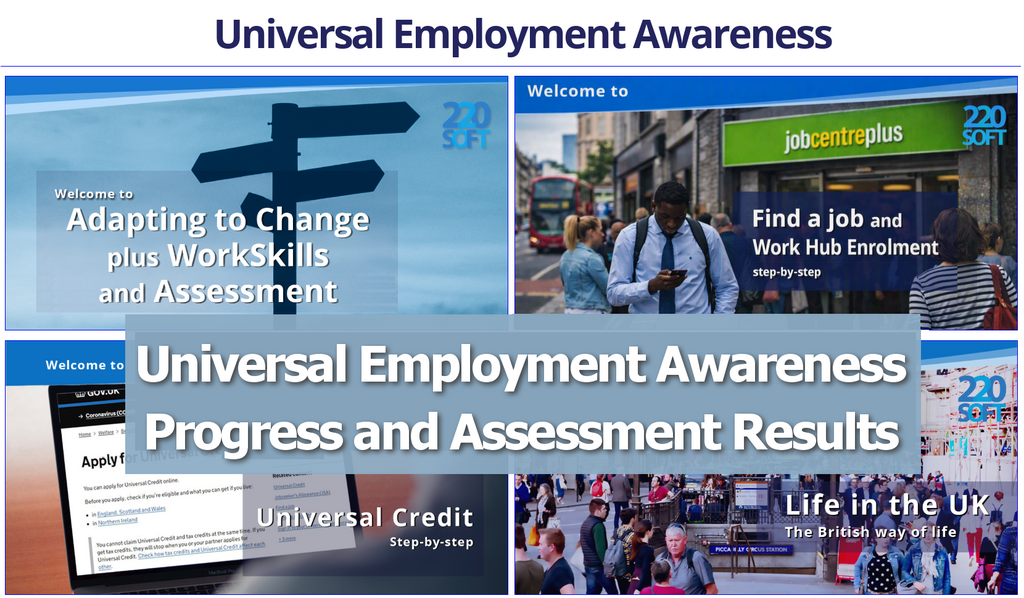
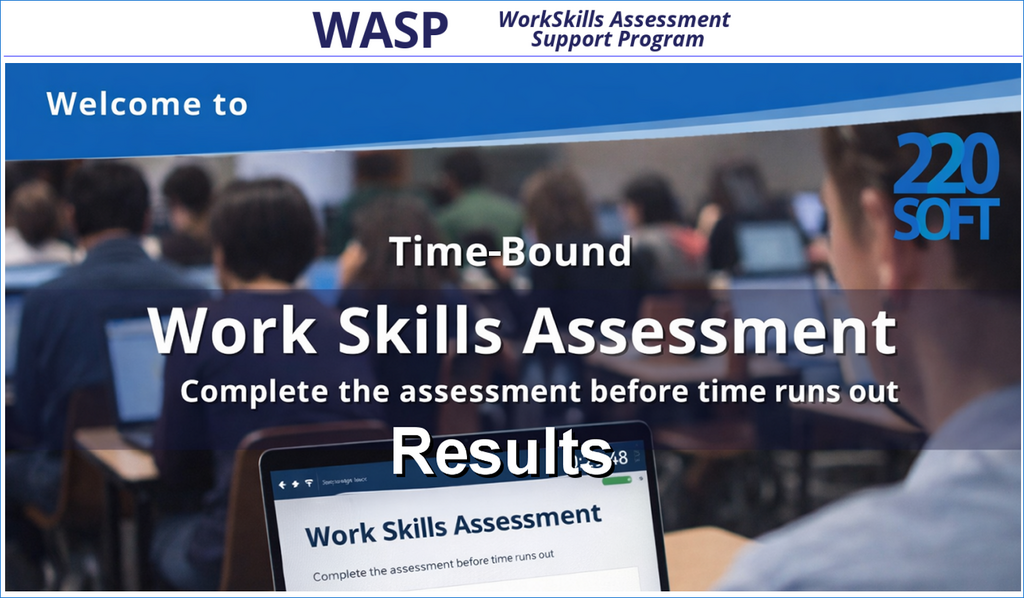
Community Support has a User Tracking Information System (UTIS), while Employment Support uses the WorkSkills Assessment Program (WASP). Both are designed to provide administrators with comprehensive tracking information.
The reporting for UTIS and WASP is similar, but UTIS does not show assessment or exam results.
The first page of data that you see when you log in is the User Data Summary and reports. This section provides a comprehensive overview of users' progress through the guides (the number of times they have logged in and total time spent reading them), together with the assessment mark (Adapting to Change, Employment Skills only).
There are also report buttons so administrators can view detailed summaries of each user's performance. At the top of the results panel are four links to the individual guides (these are also at the foot of the page). These take you to the User Data for the individual guides. There you will find a page similar to the User Data Summary that you came from, but showing the dates the person first and last used the guide, the number of times they have logged in to it, the time spent on the guide, the number of chapters they have started and the number completed, and the assessment mark (Adapting to Change only).
Clicking column headings reorders the data, and in addition, below the results panel, there are navigation, instructions, and search facilities. You can move to any page and display up to 50 users per page and search for the information that you want.
This information is crucial for monitoring user progress and identifying areas for improvement.


The usage summary shows how the system is being utilized. It includes information about the number of active users, when they signed up, and their full name and username. This data helps administrators quickly assess the usage of the system without all the other data that is on the User Data Summary and Reports screen.
Below that table are the navigation, search, and print options - similar to the User Data Summary and Reports.
On the screen, there are also buttons allowing the administrator to delete all the data for an individual user. These buttons take you to a screen where you can choose whether to delete all the data or just parts.


You can export data in .csv format to use in other programs, such as Microsoft Excel. You can choose which data you want to export by clicking a switch to slide it, making your selection, and exporting the chosen data.
At the foot of the two Data Summary pages, there is a Print button. This takes you to a page very similar to the one you left, where you can use the navigation section on that page to choose what you want to print. When you print it, the navigation instructions, buttons, etc., will not appear on the printout. After printing, you can use the navigation to select more data and print that before returning to the data screens.
You can print it on paper or save it as a PDF file.

The Change the Display Settings for Preferences or Accessibility option allows you to choose the font (type and size) and the colours (font and background). You can therefore make the display suit your own preferences or cater for accessibility needs.
When you click the Preferences or Accessibility button you will see the screen below. The colours etc. are the current System Settings which you can change as you wish. The screen will change to reflect your choices and this will become the default style that the user will see when they login. They can, however, change it to suit their own preferences.


This section provides a comprehensive overview of user examination data and gives access to various reports. Administrators can view detailed summaries of each user's performance, including results and times. This information is crucial for monitoring user progress and identifying areas for improvement.
Most of the reporting is similar to the guide admin except examination data is shown, but on the Examination Summary and Reports screen there are 4 buttons alongside each user:


Administrators can adjust the current global settings to customise the experience:
Set the number of times that the exam can be attempted
Any number between 1 and 10 can be chosen to set the maximum number of times that users can take the examination.
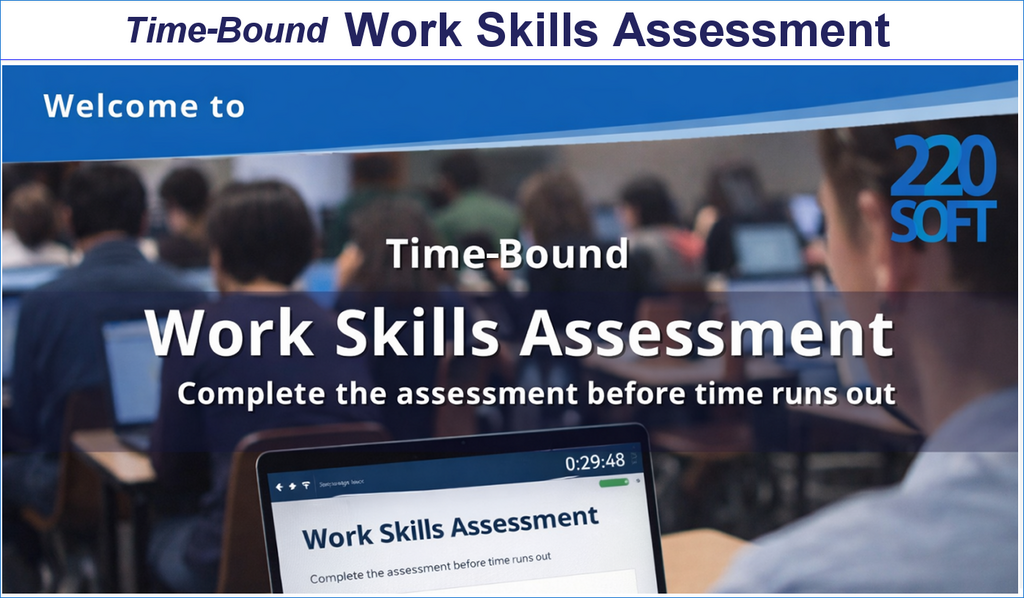
Set the Exam Timer
The time allowed can be set between 30 minutes and 120 minutes in increments of 5 minutes. A countdown counter is shown on the screen.
Set the Pass Mark
This can be set to any mark between 50% and 90%.
Choose whether to have a Certificate Button on the exit page
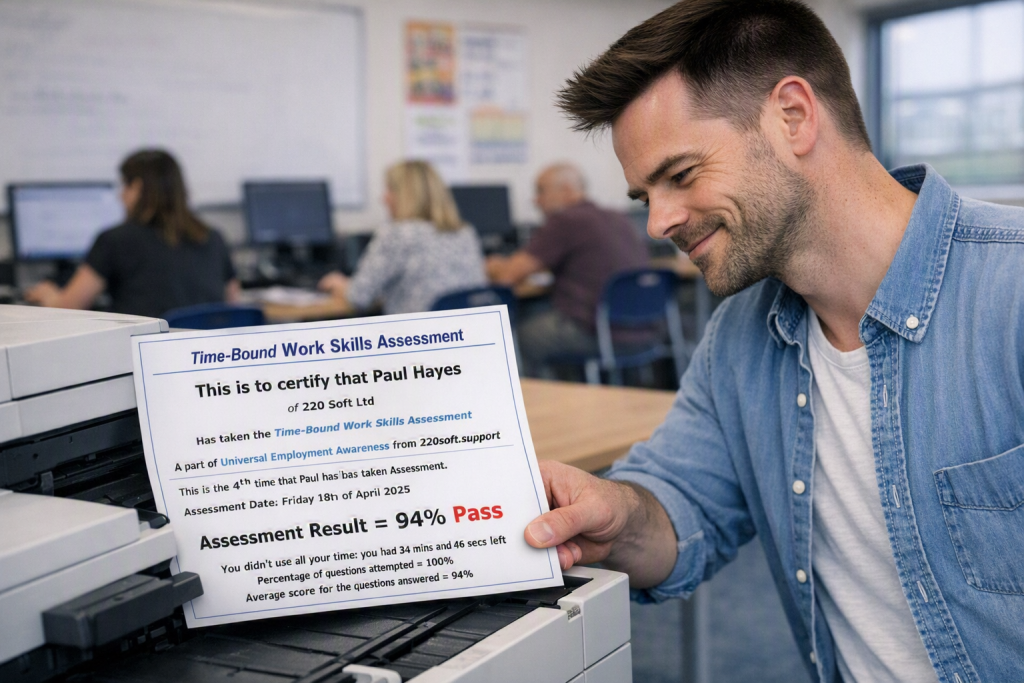
By default, the user cannot print their own certificate. This is so that the administrator can discuss the results with the user as the certificate is handed over. However, this can be changed and a button automaticaly added to the exit page allowing one of the four variations of the certificate available.
Show previous results on certificates
If the examination has been done more than once, this selection allows administrators to determine whether the users’ certificate should show previous results as well as the current ones.
Other options such as Change the Display Settings for Preferences or Accessibility, Export and Delete operate in a similar way to the guides as previously described.

The guides are accessible to everyone, providing 24/7 availability for those in need. Users can easily view and print their certificates as proof of having accessed the guide and their progress.
When a user returns to the guide, they simply enter the username and password they created during their initial sign-up.
They will be able to see exactly what they have previously completed.
The intuitive menu system allows users to effortlessly navigate the guide and quickly find the information they need.
Progress is tracked and displayed, highlighting the number of pages viewed and the time spent, all conveniently accessible through the menus.
In the evaluated version of Employment Support, users can also view their scores directly on the menus, providing an opportunity to retry and improve their results.
If users are dissatisfied with any score, they can retake the assessment. However, once a page is started, all questions must be answered again, with the order randomized to prevent recalling previous answers.
Users can easily identify which sections they have fully read, whether during the current session or in the past, as the menu items change color once a topic is complete.
Users can view and print their own certificates to showcase their progress.
In the assessed version, a comprehensive summary of the marks is also provided.

Similar to the guides, the menu items change color to indicate sections that have been visited. Once a section is visited, it cannot be revisited.
The administrator or tutor has the option to generate one of four types of reports, ranging from detailed analyses (including section marks, totals, and more, as outlined below) to a straightforward Pass/Fail certificate. The default passing mark is set at 70%.
They can either present and discuss the certificate with the user directly or include a button on the exam's end screen, allowing the user to print their own certificate.


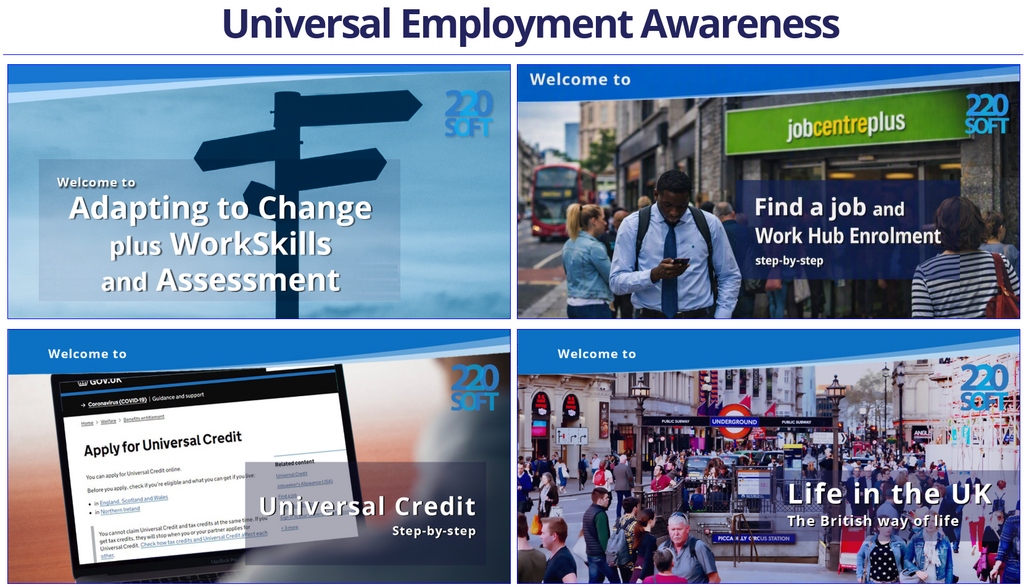
Resources for adapting to changes in employment, focusing on skill optimisation and job searching. Topics include interview preparation, finding your ideal job, navigating your first day, and maximizing your work experience.

Follow the steps of setting up your Find a job account on the government website and how to manage and make the best use of it. Other useful areas like covering letters and creating CVs (with templates) and searching for jobs are also covered.

Navigate the Universal Credit system with ease as you follow the steps of setting up your account, how much will be paid and when it will be paid. Other useful areas like budgeting and, for those new to computing, basic computer skills are also covered.

Helping newcomers to the UK by explaining things that may be different or new to them as they settle in the UK. Culture, customs, religion, travelling and public transport, health, hygiene and the NHS, making a living and benefits are among the topics covered.